8 min read
Accessibility & Automation
Canvas and WebGL UIs are typically inaccessible — they are just pixel buffers with no semantic information. VectoUI solves this with a shadow DOM projection: for every interactive entity, the engine maintains a real, invisible DOM element positioned exactly over the canvas component. Screen readers, keyboard navigation, and automation tools interact with those real elements; the canvas is purely visual.
How shadow DOM projection works
When an entity has interactive = true (and a non-zero box), the Scene creates a real HTML element — <button>, <input>, <a>, etc. — and positions it above the canvas using absolute CSS. The element has opacity: 0 and pointer-events: auto, so it is invisible to the eye but fully functional for accessibility tools.
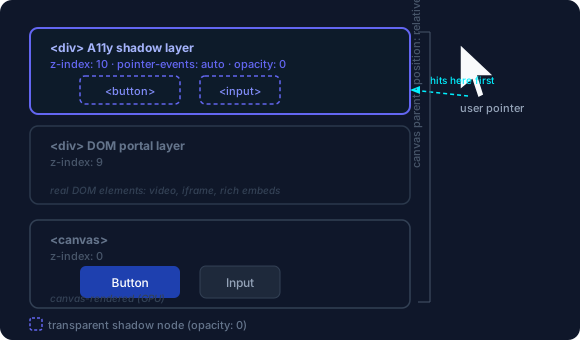
pointer-events: auto, so clicks reach the real shadow elements before the canvas.The a11y layer sits in the canvas’s parent <div>, which Scene forces to position: relative automatically.
On every rendered frame (throttled by a11ySyncInterval), the Scene:
- Reads each interactive entity’s
getA11yAttributes(). - Creates or updates the corresponding shadow node (dirty-checked to minimize DOM writes).
- Positions the node at the entity’s global position, sized to
width × height × scale.
The sync never prunes during a frame. If your code adds and removes interactive child entities frequently, call scene.detachA11y(entity) before discarding them, or their shadow nodes will leak. scene.remove(entity) prunes recursively and safely.
Opting in: entity.interactive
entity.interactive = true; // enable shadow node + pointer/keyboard events
entity.width = 120;
entity.height = 40; // shadow node is only created when width > 0
Setting interactive = true has a side-effect: it flags a11yNeedsReorder and calls scene.markDirty().
Controlling the shadow node: getA11yAttributes()
Override getA11yAttributes() to specify the element type, ARIA role, and semantic state:
import type { A11yAttributes } from '@vecto-ui/core';

class AccessibleBtn extends Entity {
  label = 'Submit';

  getA11yAttributes(): A11yAttributes {
    return {
      tag: 'button',
      role: 'button',
      label: this.label,
    };
  }
}
Full interface:
interface A11yAttributes {
  tag?: 'div' | 'a' | 'button' | 'img' | 'input' | 'textarea'; // default: 'div'
  role?: string; // ARIA role (e.g. 'switch', 'slider', 'combobox')
  label?: string; // aria-label / accessible name
  href?: string; // for tag='a' — makes it a real link
  src?: string; // for tag='img'
  alt?: string; // for tag='img'
  inputType?: string; // for tag='input' — 'text', 'checkbox', etc.
  placeholder?: string; // input/textarea placeholder
  value?: string; // input/textarea current value
  checked?: boolean; // input[type=checkbox] or aria-checked (for role=switch)
  disabled?: boolean;
  expanded?: boolean; // aria-expanded (for comboboxes, disclosures)
  controls?: string; // aria-controls (points to another element's id)
  haspopup?: string; // aria-haspopup
  selected?: boolean; // aria-selected (for listbox options)
  activedescendant?: string; // aria-activedescendant (for composite widgets)
  valuemin?: string; // aria-valuemin (for sliders, meters)
  valuemax?: string; // aria-valuemax
}
What built-in components project
| Component | Shadow element | Key ARIA attributes |
|---|---|---|
Button |
<button> |
role="button", aria-label |
Link |
<a href> |
native link, aria-label |
Image |
<img> |
src, alt |
Input |
<input type="text"> |
placeholder, value (live) |
TextArea |
<textarea> |
placeholder, value (live) |
Checkbox |
<input type="checkbox"> |
checked (live), aria-label |
Toggle |
<div role="switch"> |
aria-checked (live), aria-label |
Slider |
<div role="slider"> |
aria-valuenow/min/max (live) |
Dropdown |
<div role="combobox"> |
aria-expanded, aria-controls, menu items as role="option" |
Card (with label) |
<div role="group"> |
aria-label |
Table |
<div role="grid"> |
aria-label with row/col count |
Text |
<div> |
aria-label = text content |
IME-aware input fields
Input and TextArea use real, transparent shadow <input>/<textarea> elements for text entry. This means:
- IME composition (Chinese, Japanese, Korean, Arabic) works natively — the browser handles the candidate window.
- Text selection, clipboard (cut/copy/paste), undo/redo are all native.
- The canvas is a pure visual mirror: it reads
value,selectionStart,selectionEnd, andcompositionfrom thechangeevent and draws the caret, selection highlight, and IME underline.
The shadow input is never overwritten while it holds focus — the syncA11y() loop skips value updates for focused inputs to preserve the browser’s native selection state.
The debugA11y option
Enable debugA11y: true in SceneOptions to make the shadow nodes visible during development — they appear with a blue dashed outline:
const scene = new Scene(canvas, { debugA11y: true });Open browser DevTools → Elements and you will see the actual <button>, <input>, and <a> elements positioned over your canvas. This is the fastest way to verify that roles, labels, and positions are correct.
a11yFullViewport — boundless surfaces
Some entities cover the entire viewport (an infinite canvas, a gesture recognizer, a background click trap). These have no meaningful bounding box. Set a11yFullViewport = true to project a 100vw × 100vh shadow node:
class PanGesture extends Entity {
  constructor() {
    super();
    this.interactive = true;
    this.a11yFullViewport = true; // no width/height needed
  }

  getA11yAttributes() {
    return { role: 'application', label: 'Pan and zoom canvas' };
  }
}
The full-viewport node is mounted behind all other shadow nodes, so any on-top components (buttons, inputs) remain clickable.
a11ySyncInterval — throttling during animation
By default, the shadow DOM syncs on every rendered frame. For UIs with heavy animation and many interactive entities, sync can dominate frame time. Throttle it:
const scene = new Scene(canvas, { a11ySyncInterval: 100 });
// Shadow DOM is updated at most once per 100ms during animation
The sync also freezes entirely while an animate() tween is running and catches up when it settles, to avoid layout thrash during kinetic animations.
Inspecting the shadow tree programmatically
// Get a nested snapshot of all projected shadow nodes
const tree = scene.getA11yTree();
// Returns: A11yTreeNode[] — { id, tag, role, label, value, children, ... }

// Get the actual HTMLElement for a specific entity
const el = scene.getA11yElement(entity.id);
el?.focus(); // programmatically focus a shadow node
Playwright integration
Because every interactive entity projects a real DOM element, standard Playwright selectors work without any special adapters:
import { test, expect } from '@playwright/test';

test('toggle switches physics engine', async ({ page }) => {
  await page.goto('/demos/nexus');

  // Works because Toggle projects a <div role="switch" aria-label="Physics">
  const toggle = page.getByRole('switch', { name: 'Physics' });
  await toggle.click();
  await expect(toggle).toHaveAttribute('aria-checked', 'false');
});

test('search input filters results', async ({ page }) => {
  await page.goto('/');

  // Input projects a real <input type="text" placeholder="Search…">
  await page.getByPlaceholder('Search…').fill('spring');
  await expect(page.getByRole('option')).toHaveCount(3);
});

test('button is keyboard accessible', async ({ page }) => {
  await page.goto('/demos/chat');

  // Tab to the button, press Enter
  await page.keyboard.press('Tab');
  await page.keyboard.press('Enter');
});
Selecting by data-vecto-id
Each shadow node carries a data-vecto-id attribute equal to entity.id. For stable selectors that survive label text changes:
const entity = new Button('Submit');
entity.id = 'submit-btn'; // or set in constructor via super with id

// In Playwright:
await page.locator('[data-vecto-id="submit-btn"]').click();
Screen reader testing checklist
- Every interactive entity has
interactive = trueand a non-zero box. -
getA11yAttributes()returns a meaningfultagandlabel. -
Input/TextAreahave aplaceholder(used asaria-label). -
Checkbox/Togglecheckedstate is reflected live ingetA11yAttributes(). -
Sliderhasvaluemin,valuemax, andvalueset on every render. -
Cardgroups have alabelwhen they represent a logical region. - Tab order is reasonable (shadow nodes are positioned in DOM order, which matches add order).
- Run
scene.getA11yTree()and inspect the output to catch missing labels. - Enable
debugA11y: trueand visually verify node positions match the canvas components.
Troubleshooting
Shadow node position is offset from the canvas component
Two common causes:
- Canvas parent is not
position: relative—Scenesets this automatically on every frame, but a CSS rule with higher specificity forcingposition: staticwill override it. Check the computed style on the canvas’s parent element. - CSS
transformon the canvas parent — absolute positioning of the shadow nodes is relative to the nearest positioned ancestor, buttransformcreates a new stacking context which can cause offsets. Move thetransformto the canvas element itself, not the parent.
If you previously used a11yOffsetX / a11yOffsetY as a workaround, remove them and fix the underlying positioning issue instead.
Playwright getByRole() finds nothing
Check the following:
entity.interactivemust betrueandentity.width > 0.getA11yAttributes()must return the correcttagandrole. Forpage.getByRole('button')to work, the tag must be'button'or the role must be'button'.- The label must match:
page.getByRole('button', { name: 'Submit' })requireslabel: 'Submit'in the attributes. - The scene must have called
start()— the a11y sync happens during the render loop.
Use scene.getA11yTree() to print a snapshot of what is currently projected:
console.log(JSON.stringify(scene.getA11yTree(), null, 2));scene.getA11yTree() returns an empty array
The a11y tree is only populated after scene.start() has run at least one frame. If you call getA11yTree() synchronously after construction, it will be empty. Wrap it in a setTimeout or check after a user interaction.
Also verify entity.interactive = true is set — entities without interactive are never projected.
Next: UI Components — the full suite of ready-made interactive components.